The digital revolution has transformed how we connect our mobile devices to cellular networks. iPhone eSIM activating represents a significant leap forward in connectivity, eliminating the need for physical SIM cards whilst providing instant access to mobile networks worldwide. This technology has become particularly valuable for travellers, remote workers, and anyone seeking flexible mobile connectivity without the constraints of traditional carrier contracts. Understanding the activation process ensures you can maximise this feature's potential whilst avoiding common pitfalls.
Understanding iPhone eSIM Technology
The embedded SIM (eSIM) represents Apple's vision for streamlined connectivity. Unlike traditional SIM cards that require physical insertion and swapping, eSIMs are built directly into your iPhone's hardware. This advancement enables you to activate multiple cellular plans without juggling physical cards or visiting carrier shops.
Key advantages of eSIM technology include:
Instant activation without waiting for physical delivery
Multiple plan management on a single device
Seamless switching between carriers and plans
Enhanced security with encrypted digital profiles
Greater flexibility for international travel
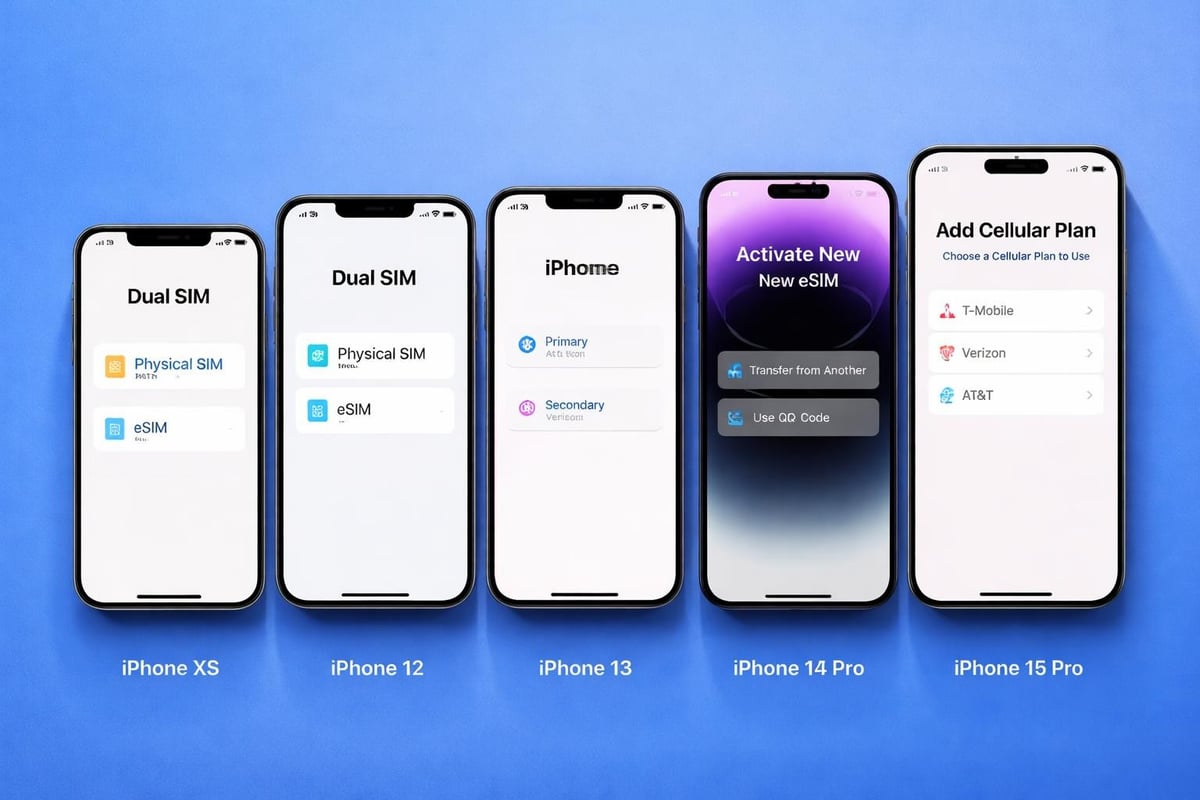
Since the iPhone XS, XS Max, and XR models launched in 2018, Apple has consistently included eSIM capability across its product line. The iPhone 14 series marked a turning point for US models, which now exclusively support eSIM technology without any physical SIM card slot. This shift underscores Apple's commitment to digital-first connectivity.
Prerequisites for iPhone eSIM Activating
Before initiating the activation process, you'll need to verify several essential requirements. Your iPhone must be running iOS 12.1 or later, though iOS 16 and subsequent versions offer the most streamlined experience. Check your software version by navigating to Settings > General > About.
Carrier compatibility remains crucial for successful iPhone eSIM activating. Most major carriers worldwide now support eSIM technology, but verification prevents activation headaches. Contact your carrier or check their website to confirm eSIM availability for your specific plan and region.
Device Compatibility Requirements
iPhone Model | eSIM Support | Dual SIM Capability | Physical SIM Slot |
|---|---|---|---|
iPhone XS/XR (2018) | Yes | Yes (1 eSIM + 1 Physical) | Yes |
iPhone 11 Series | Yes | Yes (1 eSIM + 1 Physical) | Yes |
iPhone 12/13 Series | Yes | Yes (2 eSIMs + 1 Physical) | Yes |
iPhone 14+ (US) | Yes | Yes (2 eSIMs) | No |
iPhone 14+ (Global) | Yes | Yes (2 eSIMs + 1 Physical) | Yes |
iPhone 15 Series | Yes | Yes (2 eSIMs) | Varies by region |
Network connectivity forms another prerequisite. You'll need either WiFi or cellular data access during the activation process. Additionally, ensure your device is unlocked if you're switching carriers or using international eSIM providers. Locked devices can only activate eSIMs from their designated carrier network.
Primary Methods for iPhone eSIM Activating
Apple provides multiple pathways for activating your eSIM, each designed for different scenarios and user preferences. Understanding these methods helps you choose the most efficient approach for your situation.
eSIM Quick Transfer Method
The eSIM Quick Transfer feature represents the fastest activation method when switching between iPhones. This option appears automatically during iPhone setup if you're transferring from another iPhone with an active eSIM plan.
Steps for Quick Transfer:
Power on your new iPhone and begin the setup process
Select "Transfer from iPhone" when prompted
Choose your previous iPhone from the list
Authenticate using Face ID, Touch ID, or passcode
Select the cellular plan you wish to transfer
Wait for the transfer to complete (typically 2-5 minutes)
This method works seamlessly with most major carriers and requires both devices to be nearby during the transfer. The previous iPhone's eSIM will deactivate automatically once the transfer succeeds.
QR Code Activation Method
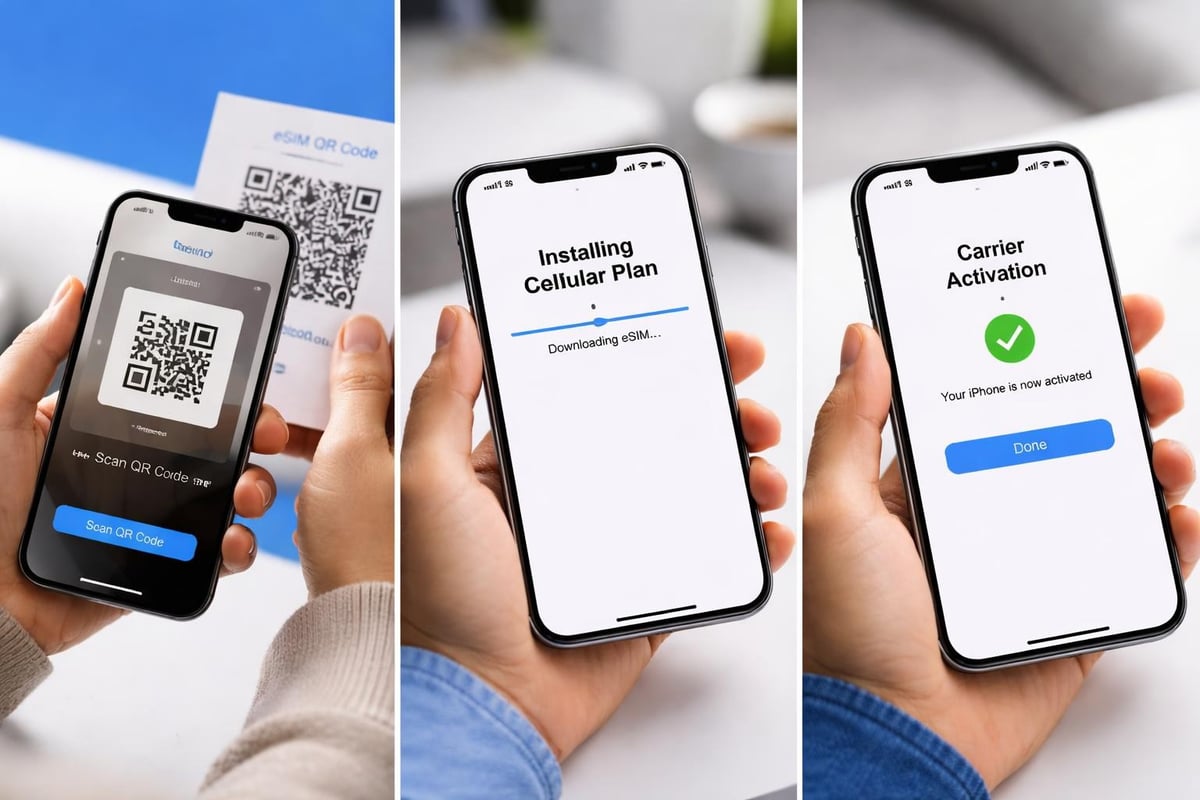
QR code activation remains the most universal method for iPhone eSIM activating. Your carrier or eSIM provider supplies a unique QR code containing your cellular plan information. This approach works with virtually all eSIM providers globally.
Navigate to Settings > Cellular > Add Cellular Plan to begin. Position your iPhone camera over the QR code, which iOS will automatically detect and process. The system reads the embedded activation credentials and connects to the carrier's provisioning server. Within moments, your eSIM profile downloads and installs.
For those using services like gosimless.app, the QR code arrives via email immediately after purchase, enabling instant activation regardless of your location. This convenience proves particularly valuable for international travellers who need connectivity upon arrival.
Carrier App Activation
Many mobile network operators now offer dedicated applications that streamline iPhone eSIM activating. This method eliminates the need for QR codes by handling the entire process within the carrier's app environment.
Download your carrier's official app from the App Store, then log in with your account credentials. Look for options labelled "Add eSIM", "Activate eSIM", or similar terminology. The app communicates directly with your iPhone's eSIM module, downloading and installing the cellular profile without manual intervention.
This approach works particularly well for existing customers adding an eSIM to their account or activating a new plan. Apple's official guide provides carrier-specific instructions for major networks worldwide.
Manual Entry Activation
When QR codes prove unavailable or problematic, manual entry provides an alternative activation pathway. Your carrier supplies specific details including SM-DP+ address and activation code.
Manual activation requires:
SM-DP+ server address (provided by carrier)
Activation code or confirmation code
Stable internet connection throughout the process
Access this option through Settings > Cellular > Add Cellular Plan > Enter Details Manually. Input the information precisely as provided, as errors will prevent successful activation. This method typically takes slightly longer than QR code scanning but proves equally reliable when executed correctly.
Troubleshooting Common iPhone eSIM Activating Issues
Despite the streamlined nature of eSIM technology, occasional challenges arise during activation. Understanding these issues and their solutions prevents frustration and downtime.
Activation Failure Error Messages
"Cellular Plan Cannot Be Added" represents the most common error message during iPhone eSIM activating. This typically indicates carrier server issues, incorrect QR codes, or network connectivity problems. Wait 10-15 minutes before retrying, as carrier servers occasionally experience temporary overload.
Verify that you're scanning the correct QR code and that it hasn't expired. Most eSIM QR codes remain valid for 30 days, though some carriers impose shorter timeframes. Request a new QR code if yours has exceeded its validity period.
Network settings reset can resolve persistent issues:
Navigate to Settings > General > Transfer or Reset iPhone
Select "Reset" then choose "Reset Network Settings"
Confirm the action (this erases WiFi passwords)
Restart your iPhone after the reset completes
Reconnect to WiFi and retry eSIM activation
The T-Mobile troubleshooting guide offers carrier-specific solutions for common error codes that may appear during activation.
Compatibility and Carrier Lock Issues
Carrier locks prevent iPhone eSIM activating with networks other than your original carrier. Contact your current carrier to request an unlock if you've fulfilled contract obligations. Most carriers process unlock requests within 48 hours for eligible devices.
Device compatibility extends beyond hardware specifications. Some regional variations of iPhone models don't support eSIM despite appearing identical to eSIM-capable versions. Check Apple's cellular setup guide to verify your specific model's capabilities.
iMessage and FaceTime Activation Problems
A known issue in recent iOS versions causes iMessage and FaceTime activation failures following eSIM setup. Users may receive "Not Delivered" errors or find these services stuck in activation limbo. This Tom's Guide article details a simple settings adjustment that resolves the problem.
Navigate to Settings > Messages > Send & Receive, then deselect your phone number and reselect it. This forces iMessage to re-authenticate with Apple's servers using your newly activated eSIM. Repeat the process for FaceTime if necessary.
Managing Multiple eSIM Profiles
Modern iPhones support storing multiple eSIM profiles simultaneously, though only two can remain active concurrently. This capability proves invaluable for separating personal and business lines or maintaining local and international plans.
Switching Between eSIM Plans
Access your eSIM management interface through Settings > Cellular. Each installed plan appears as a separate cellular line with customisable labels. Tap any plan to view its status, data usage, and activation state.
To switch your primary line, select "Default Voice Line" and choose your preferred plan. Similarly, designate your default line for cellular data under "Cellular Data". These settings determine which plan handles calls, messages, and internet connectivity by default.
Setting | Purpose | Impact |
|---|---|---|
Default Voice Line | Primary line for calls and texts | Changes caller ID and message routing |
Cellular Data | Primary data connection | Affects all internet-dependent apps |
Allow Cellular Data Switching | Automatic switching when primary unavailable | Prevents connectivity loss |
Enable "Allow Cellular Data Switching" to permit automatic failover when your primary data line becomes unavailable. This ensures uninterrupted connectivity but may incur unexpected charges if your secondary plan has different rates.
Removing and Deleting eSIM Plans
When you no longer need a specific eSIM profile, proper removal prevents confusion and potential billing issues. Navigate to Settings > Cellular, select the plan you wish to remove, then scroll to "Remove Cellular Plan". Confirm the deletion when prompted.
This action permanently erases the eSIM profile from your device. You'll need to repeat the activation process if you wish to restore the plan later. Some carriers allow reactivation using the original QR code, whilst others require generating a new activation profile.
Best Practices for Successful iPhone eSIM Activating
Optimising your eSIM activation experience requires attention to timing, preparation, and environmental factors. Implement these strategies to ensure smooth, trouble-free activation.
Pre-activation checklist:
Update iOS to the latest available version
Connect to stable WiFi (avoid public networks)
Ensure battery level exceeds 50%
Disable VPN services temporarily
Verify carrier eSIM compatibility
Have activation credentials readily available
Choose optimal timing for activation. Avoid peak hours when carrier provisioning servers experience heavy load (typically weekday mornings in your carrier's timezone). Weekend evenings generally offer faster processing times.
For travellers planning to use international eSIM services, activate your plan before departure when possible. This allows troubleshooting in familiar surroundings rather than managing issues in unfamiliar locations. Services offering USA eSIM options typically provide instant activation, making pre-trip setup straightforward.
Security Considerations
eSIM profiles contain sensitive authentication credentials that grant network access. Protect these assets by avoiding public WiFi during activation and never sharing QR codes or activation codes. Screenshot QR codes only when necessary and delete the images after successful activation.
Enable two-factor authentication for your carrier account when available. This adds a security layer that prevents unauthorised eSIM transfers or activations on your account. Check your carrier's security settings to activate this protection.
Advanced eSIM Configuration Options
Beyond basic activation, iPhone eSIM technology offers sophisticated configuration capabilities that enhance your mobile experience. Understanding these options maximises the technology's utility.
Customising Cellular Labels
Assign meaningful names to your eSIM plans to simplify management. Tap any cellular plan in Settings > Cellular, then select "Cellular Plan Label". Choose from preset options like "Travel", "Business", or "Personal", or create custom labels up to 15 characters.
These labels appear throughout iOS wherever cellular selection is required, including the Control Centre's cellular toggles. Clear labelling prevents accidentally using the wrong plan for calls or data.
Contact-Specific Line Assignment
iOS allows assigning specific cellular lines to individual contacts, ensuring calls and messages from certain people always use designated plans. This proves particularly useful for maintaining professional boundaries or managing international contacts.
Edit any contact, scroll to "Preferred Cellular Plan", and select your desired line. All communications with that contact will subsequently route through the assigned plan, regardless of your default voice line setting.
International Travel with iPhone eSIM
International roaming represents one of iPhone eSIM activating's most compelling use cases. Traditional roaming charges often shock travellers with bills exceeding hundreds of pounds for minimal data usage. eSIM technology provides affordable alternatives.
Research destination-specific eSIM providers before travel. Many services offer regional coverage spanning multiple countries, eliminating the need for separate plans in each location. European travellers might consider options covering the entire continent, whilst Asia-Pacific visitors benefit from multi-country plans.
Check the compatible devices list to ensure your iPhone model supports eSIM in your destination region. Some countries impose regulatory restrictions on eSIM technology, though these limitations are increasingly rare in 2026.
Maintaining Home Connectivity
Keep your primary (home) line active during international travel to receive calls and messages. Configure your eSIM settings to use the international plan exclusively for data whilst maintaining your home number for voice and SMS. This configuration prevents roaming charges whilst preserving accessibility.
Access these settings through Settings > Cellular > Cellular Data and selecting your travel eSIM. Simultaneously, ensure your home line remains enabled under the main Cellular settings page. This dual-line approach combines cost savings with communication continuity.
Provider Selection and Activation Speed
The eSIM provider you choose significantly impacts your iPhone eSIM activating experience. Established carriers offer reliability but often charge premium prices and impose lengthy activation procedures. Specialised eSIM providers frequently deliver faster activation and competitive pricing.
Instant activation services eliminate waiting periods entirely. Upon purchase completion, you receive QR code credentials within seconds, enabling immediate connectivity. This speed proves crucial when arriving in new countries or requiring urgent connectivity restoration.
For those requiring detailed setup assistance, consult the comprehensive installation guide that walks through each activation method step-by-step. Visual learners may prefer following along with video tutorials that demonstrate the process in real-time.
Data Plan Flexibility
Modern eSIM providers offer unprecedented flexibility in plan duration and data allowances. Options range from short-term plans lasting just days to annual packages providing continuous coverage. This granularity enables precise matching of plans to actual usage patterns.
Consider your typical data consumption when selecting plans. Streaming services, video calls, and navigation apps consume substantially more data than messaging and email. Most providers offer plan details showing expected usage scenarios and corresponding data requirements.
Review available plans across multiple destinations to identify the best value for your needs. Regional plans often provide better rates than single-country options when visiting multiple neighbouring countries.
Factory Reset and eSIM Considerations
Factory resets require careful planning when your iPhone uses eSIM connectivity. Unlike physical SIM cards that remain functional after reset, eSIM profiles are erased during the restoration process. Prepare accordingly to avoid losing network access.
Before initiating a factory reset, contact your carrier to verify their eSIM reactivation policy. Some carriers allow reinstalling the same eSIM profile using the original QR code, whilst others require generating new activation credentials. Document this information before proceeding with the reset.
Back up your iPhone completely before resetting. Whilst the backup doesn't preserve eSIM profiles, it ensures all other data remains secure. After restoration, you'll need to repeat the iPhone eSIM activating process using new or preserved credentials.
The eSIM troubleshooting resource provides detailed guidance on recovering from factory reset situations where eSIM activation encounters difficulties.
Carrier-Specific Activation Variations
Despite Apple's standardised eSIM implementation, carriers introduce variations in their activation processes. Understanding these differences prevents confusion when switching between providers or helping others with their devices.
Some carriers, particularly in North America, offer zero-touch activation for existing customers. This seamless process automatically detects eligible devices and pushes eSIM profiles without requiring manual intervention. New iPhone purchases from carrier shops often include this automatic provisioning.
European and Asian carriers more commonly rely on QR code distribution, either through email, online account portals, or printed cards received via post. Middle Eastern carriers occasionally require in-person verification at retail locations before issuing eSIM credentials.
Regional Regulatory Requirements
Certain jurisdictions mandate identity verification before permitting eSIM activation. These "Know Your Customer" (KYC) regulations require submitting documentation such as passport copies or national identity cards. Processing times vary from minutes to several days depending on the carrier's verification infrastructure.
Budget extra time for eSIM activation in countries with strict telecommunications regulations. The GCI activation guide demonstrates how regional carriers implement verification whilst maintaining reasonable activation timeframes.
Future-Proofing Your eSIM Strategy
As eSIM technology continues evolving, staying informed about emerging capabilities ensures you maximise its benefits. Apple regularly introduces enhancements through iOS updates, expanding functionality without requiring new hardware.
The trajectory points toward completely eliminating physical SIM cards across all iPhone models globally. This transition will standardise the iPhone eSIM activating experience worldwide, removing regional variations in device configuration. Manufacturers beyond Apple are similarly embracing eSIM as the connectivity standard.
Prepare for this future by familiarising yourself with eSIM management now. Skills developed managing one or two eSIM profiles will scale as devices support storing dozens of profiles simultaneously. This expansion will enable sophisticated use cases like automatic carrier switching based on location or cost.
Multi-Device eSIM Management
Wearables, tablets, and laptops increasingly incorporate eSIM technology, creating ecosystems of connected devices sharing cellular plans. Understanding iPhone eSIM activating principles translates directly to these other devices, as the underlying technology remains consistent across platforms.
Consider the broader connectivity needs of all your devices when selecting eSIM providers. Some services offer multi-device support, enabling simultaneous activation across phones, tablets, and smartwatches using a single account. This consolidation simplifies management and often reduces total costs compared to separate plans for each device.
Explore the FAQ section for answers to common questions about multi-device configurations and cross-platform eSIM compatibility.
Network Performance Optimisation
Successfully completing iPhone eSIM activating represents just the first step. Optimising your eSIM configuration for peak performance ensures you receive maximum value from your cellular plan.
Monitor signal strength indicators regularly during the first days after activation. If you experience persistent weak signals or connectivity drops, verify you've selected the correct network type in Settings > Cellular > Cellular Data Options > Voice & Data. LTE/5G selection impacts both performance and battery life.
Enable WiFi Calling where available to improve call quality in areas with marginal cellular coverage. This feature routes voice calls through internet connections whilst maintaining your cellular number for caller identification. Access this setting through Settings > Phone > WiFi Calling.
Performance optimisation checklist:
Enable automatic carrier settings updates
Verify APN settings match carrier specifications (usually automatic)
Disable background app refresh for unnecessary applications
Monitor data usage to identify consumption patterns
Test download and upload speeds using dedicated apps
Compare your eSIM performance against carrier-published benchmarks for your region. Significant deviations may indicate configuration issues or network problems requiring carrier support intervention.
Mastering iPhone eSIM activating empowers you to take full advantage of modern connectivity options, whether you're travelling internationally, managing multiple phone numbers, or simply seeking flexibility in your mobile service. The process has become increasingly streamlined as both Apple and carriers refine their implementation, making digital-first connectivity more accessible than ever. For instant eSIM activation with coverage across 200+ countries and no roaming fees, gosimless.app provides the affordable, flexible solution that keeps you connected wherever your journey takes you.
gosimless Team
The gosimless editorial desk — testing eSIMs, carriers and travel connectivity so you don't have to. Updated continuously from the road.